What we got on this server:
Basic steps:
Linux:
- Install step. If using a Debian-based amd64 system, use the
above package. Otherwise, search for an installer for
smallstep cli
- Run the command listed above to bootstrap the system
- Run
step ssh login
and select the Microsoft login
option.
- Log in to the Windows OpenID portal with your U of I ID
- ssh to servers
Windows:
- Download step from github. Choose step_windows_0.28.7-rc2_amd64.zip or later.
- Extract the archive in your downloads directory. Copy step.exe to your home Windows directory (e.g. C:\Users\YOURNETID\).
- Download the iSchool SSH public CA certificate: ischool_ca.pub
- Start and configure PuTTy to use the host CA key. In left side of the PuTTyconfiguration
window choose Connection, then SSH, then Host Keys. Click "Configure host CAs."
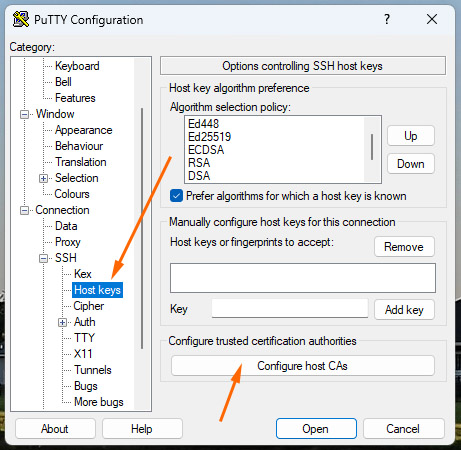
- Options:
Name for this CA: ischool_keys
Public key for this CA record: Click "Read from file" and choose the ischool_ca.pub file you downloaded above.
Valid hosts this key is trusted to certify: *.ischool.illinois.edu
Important: Make sure you click "Save" in the upper right of that window before clicking "Done".
- In a Windows Terminal Window run the command:
step ca bootstrap --ca-url=https://testca.ischool.illinois.edu:8443 --fingerprint a4fdc35099bfdfeb623d131396ff14f1543d88064fe218754e41b46960d9cee4
to configure step to talk to the iSchool test CA sever.
- Open Notepad and paste the following, using your own netid:
pageant --openssh-config C:\Users\YOURNETID\.ssh\config
Save that file to C:\Users\YOURNETID\AppData\Roaming\Microsoft\Windows\Start Menu\Programs\Startup
- To start using the new authentication, open a Windows terminal window and type
.\step ssh login
and once it replies, simply hit enter.
Putty Settings:
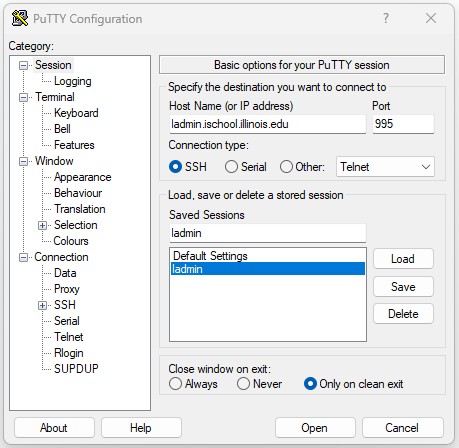
- Host Name: ladmin.ischool.illinois.edu
- Port: 995
- Name session under Saved Sessions: ladmin
- Click "Save".
To open a new SSH session click "Open." You should not be required to enter your password.
Any Questions? Brynnen would LOVE to hear your feedback: owen@illinois.edu.